Rules
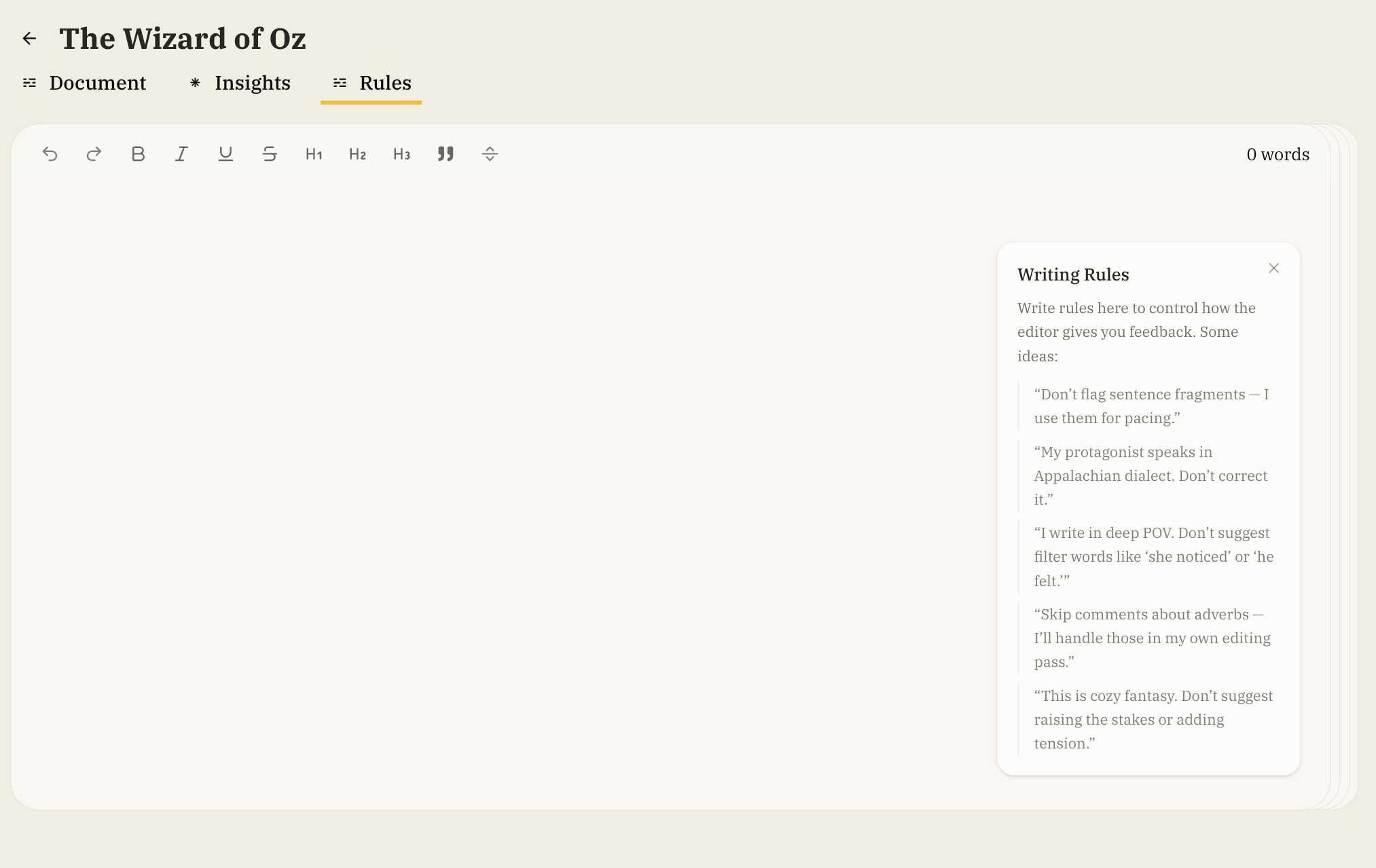
The Rules page lets you define custom instructions and preferences that guide the editor's behavior throughout your project. When you create rules, the editor will automatically check and follow them when generating suggestions, rewrites, and analysis.
Accessing Rules
- Open any project
- Click the Rules button in the top navigation bar (next to Insights)
- The Rules page opens as a dedicated document editor
What Are Rules?
Rules are custom instructions you write to guide how the editor works with your manuscript. They help ensure the editor's feedback and suggestions align with your writing style, preferences, and project-specific requirements.
Common Use Cases
- Voice and Style: Define your preferred writing voice, tone, or style
- Dialect and Language: Specify how to handle regional dialects, accents, or language variations
- Character Consistency: Set guidelines for how characters should be portrayed
- Genre Conventions: Establish rules specific to your genre or subgenre
- Project-Specific Preferences: Document any unique requirements for this particular project
Writing Effective Rules
Rules are written as plain text in the Rules document editor. You can format them however makes sense for your project:
- Use headings to organize different categories of rules
- Write clear, specific instructions
- Include examples when helpful
- Update rules as your project evolves
The Rules page provides a full-featured text editor with formatting options, allowing you to structure your rules however works best for your project.
Example Rules
## Voice and Style
- Maintain a literary, introspective tone
- Use third-person limited perspective consistently
- Avoid contractions in narrative prose

## Character Guidelines
- Sarah speaks in short, clipped sentences when stressed
- Marcus always uses formal language, never slang
- The narrator should not reveal character thoughts directly

## Dialogue
- Use British English spelling and punctuation
- Include regional dialect markers sparingly
- Tag dialogue with action beats rather than "said" tags when possible
How Rules Are Applied
The editor automatically checks your rules before:
- Generating Suggestions and Rewriting Passages: All rewrite suggestions follow your rules
- Creating Feedback: Analysis and comments respect your preferences
- Answering Questions: Responses consider your project-specific context
The editor will detect potential conflicts between rules and alert you if any contradictions are found.
Rule Conflicts
If the editor detects conflicting rules, it will display a warning showing:
- Which rules conflict with each other
- Suggestions for resolving the conflict
Avoiding conflicting rules improves the editor's output.
Tips for Using Rules
- Start Simple: Begin with the most important preferences and add more as needed
- Be Specific: Clear, detailed rules produce better results than vague guidelines
- Update Regularly: As your project evolves, update rules to reflect new decisions
- Review Conflicts: When conflicts are detected, review and resolve them to ensure consistent guidance
- Test Your Rules: After creating or updating rules, try asking the editor for suggestions to verify they're being applied correctly
- Include Examples: Show the editor examples of what it means to follow/not follow a rule
Rules vs. Chat Context
- Rules: Persistent, project-wide instructions that apply to all AI interactions
- Chat Context: Temporary context from your current conversation
Rules provide a consistent foundation, while chat conversations can include specific, one-time instructions or questions. The editor doesn't currently maintain awareness across chats.